
Take the tour
See Auction HQ at work.
Real screens from a demo auction, one tab at a time: what your committee sees, and what each part takes care of for you. Every name and number here is made up.
01
Everything at a glance
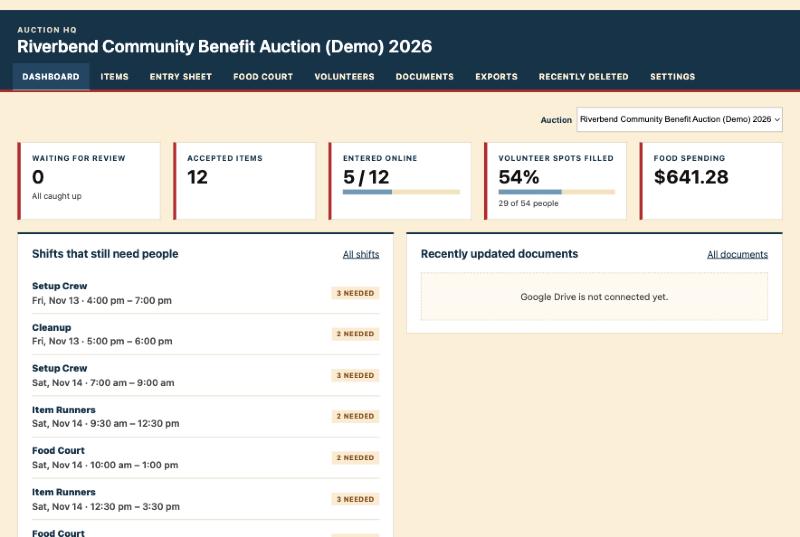
Open Auction HQ and the dashboard shows where things stand for the auction you’re working on, without opening a single spreadsheet.
✓ Items waiting for review, accepted, and entered into your bidding platform.
✓ Volunteer spots filled, plus the shifts that still need people.
✓ Food court spending so far, and the latest shared documents.
02
Items in the order they sell
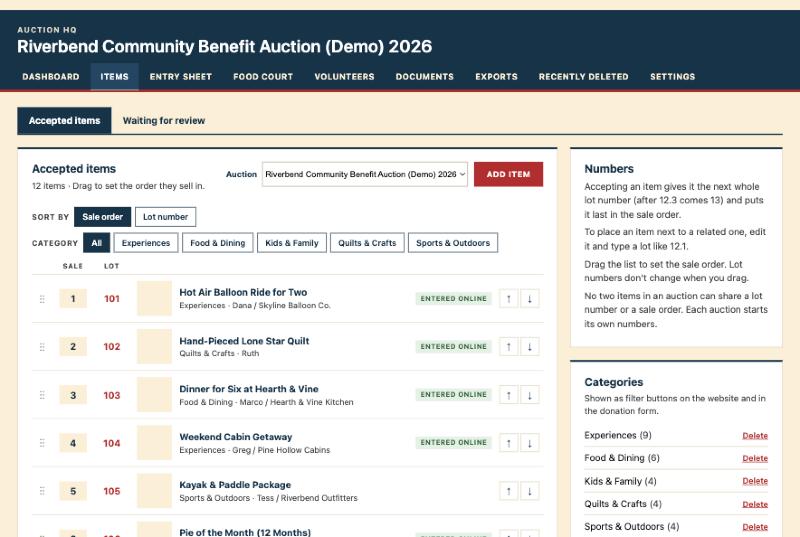
Accepted items sit in one list. Drag them into the order they’ll sell, and the lot numbers stay put, so a printed catalog never goes out of date.
✓ Sort by sale order or lot number, and filter by category.
✓ Slot an item in next to a related one with a lot like 12.1.
✓ No two items in an auction can share a lot or a place in line.
03
Bring in a spreadsheet
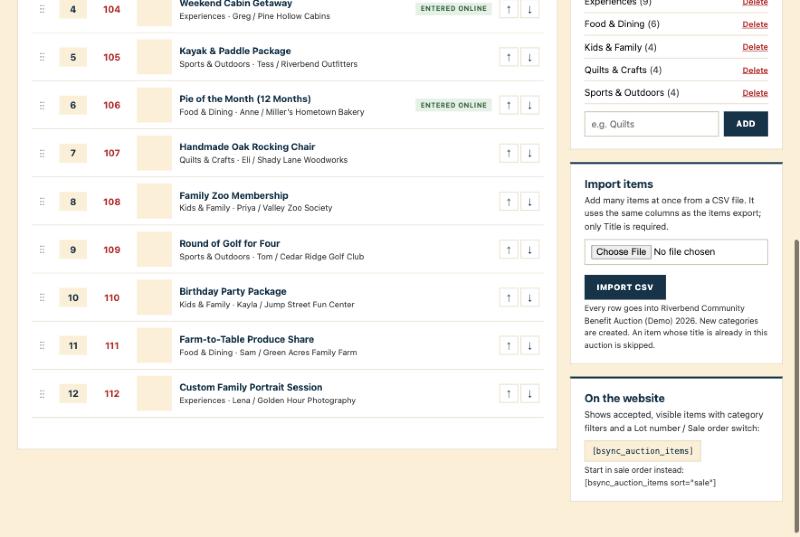
Already keep a list in Excel or Google Sheets? Save it as a CSV file and import it into the auction you choose.
✓ Same columns as the items export, so an export can be edited and brought back.
✓ Lot numbers and status come along, and new categories are created.
✓ A backup is made first, and items already in the auction are skipped.
04
Get every item into your bidding platform
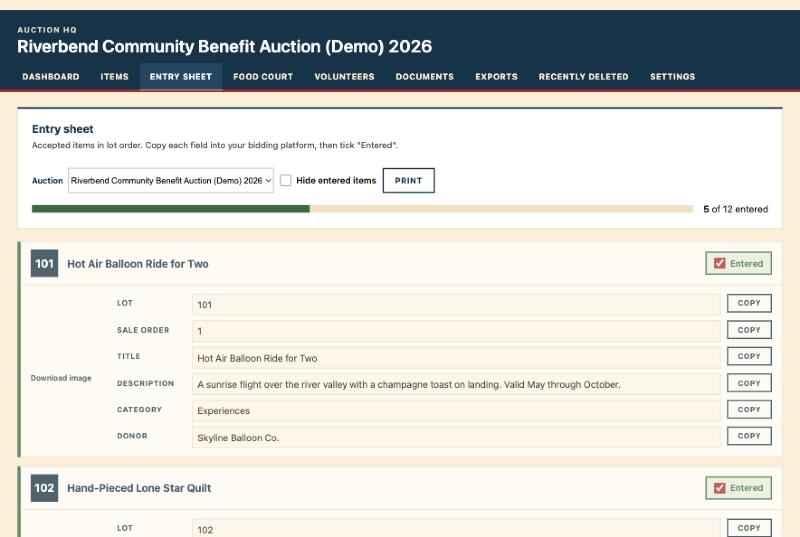
Whatever online auction software you use, the entry sheet lists every accepted item in lot order with a Copy button beside each field, so nothing is typed twice or missed.
✓ Tick “Entered” as you go, and a progress bar shows how many are left.
✓ Hide the entered items to see only what’s still to do.
✓ Print it, or download every photo straight from the sheet.
05
Positions, shifts and event days
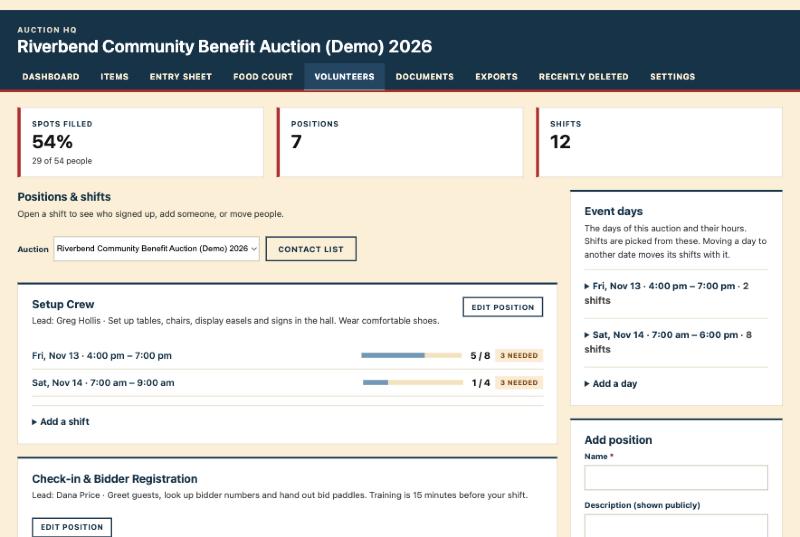
Set up each volunteer position once, then add its shifts. The Event days panel holds each day of the auction and its opening hours.
✓ Shift times are picked from that day’s hours, so nothing lands outside them.
✓ Move a day to a new date and all of its shifts move with it.
✓ The public signup page shows open spots, never who signed up.
06
Who’s coming, and when
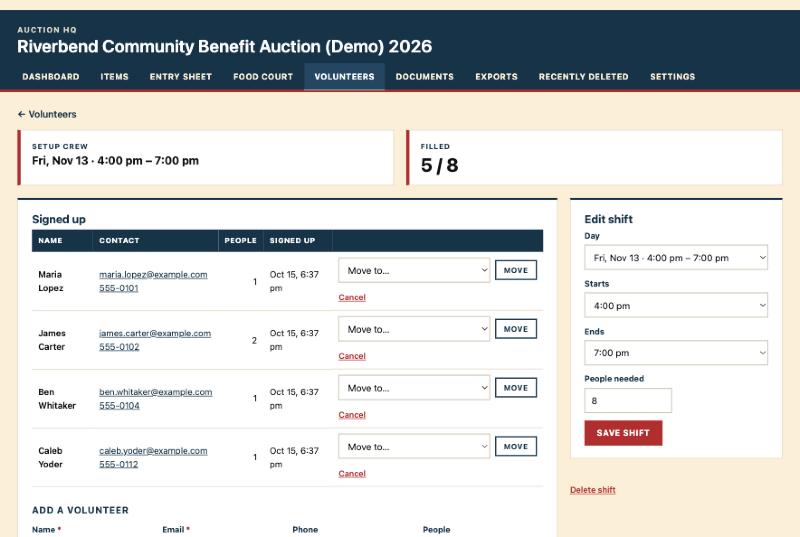
Open any shift to see who signed up, how to reach them, and how many people each one is bringing.
✓ Add someone who called in, and send them the confirmation email.
✓ Move a volunteer to another shift, or cancel a signup.
✓ A shift can never be overbooked, even when two people sign up at once.
07
The food court, counted
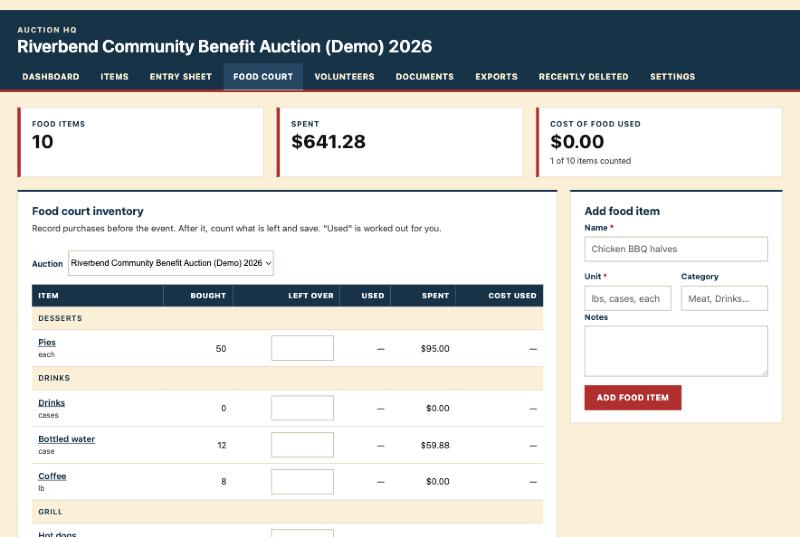
Log what was bought or donated before the event, then count what’s left after it. Auction HQ does the math.
✓ “Used” and “Cost used” are worked out for you.
✓ Grouped by category, with spending totals at the top.
✓ Two people counting at once can’t overwrite each other’s numbers.
08
Ready for the printer
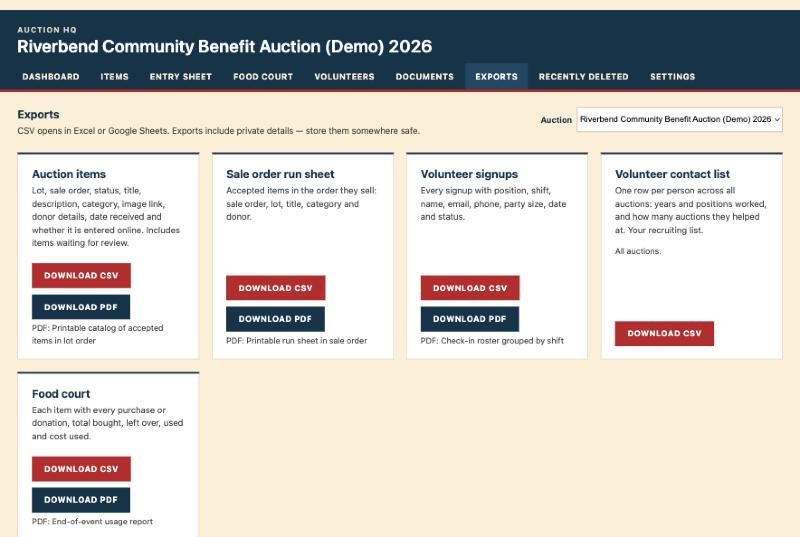
Every list the committee needs, as a CSV file for spreadsheets or a PDF to print on event day.
✓ A catalog in lot order and a run sheet in sale order.
✓ A volunteer check-in roster, grouped by shift.
✓ A contact list across every auction, for recruiting next year.
09
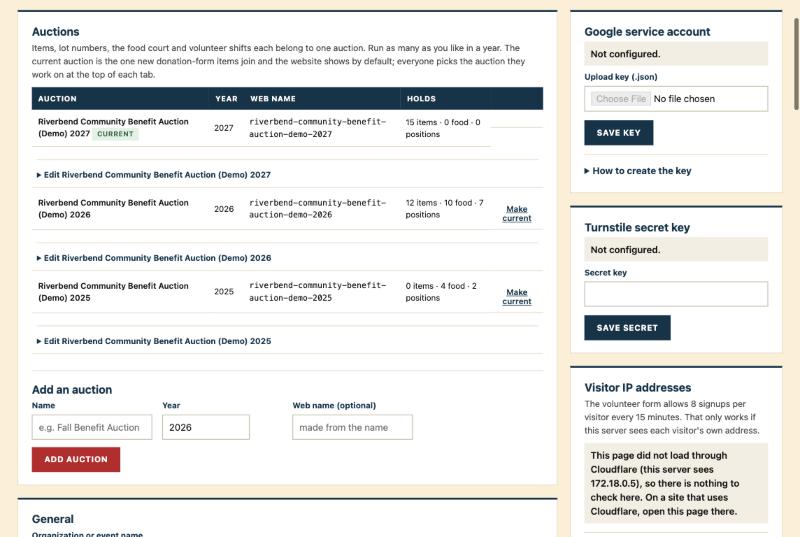
One auction or several
Run a spring sale and a fall benefit in the same year. Each auction keeps its own items, lot numbers, food court and volunteers.
✓ Choose which auction the website and new donations use.
✓ Each committee member picks the auction they’re working on.
✓ Only an empty auction can be deleted, so real data is protected.
10
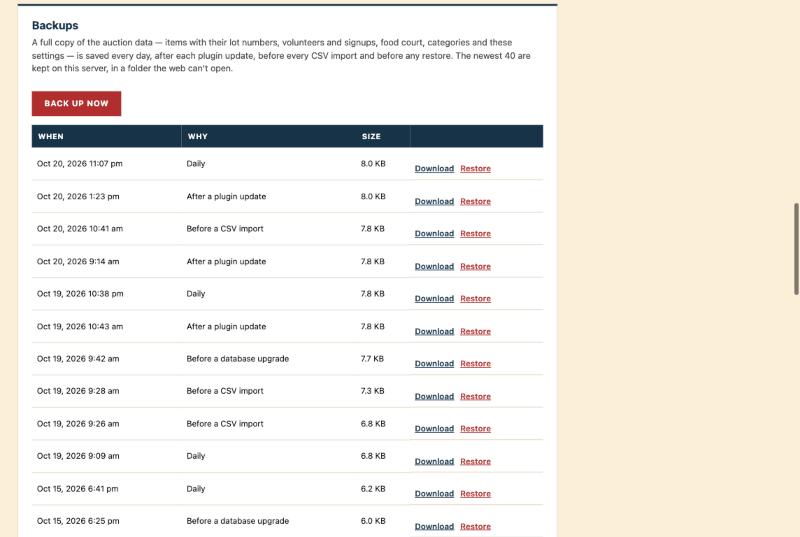
Nothing gets lost
A full copy of the auction data is saved every day, after each update, and before every import or restore.
✓ Download any backup, or put it back with one click.
✓ Deleted positions, shifts and food items can be restored for 30 days.
✓ If two people edit the same thing, the second save is stopped instead of overwriting the first.
Your auction, organized
Ready to run your auction from one place?
Auction HQ runs inside your own WordPress site. Get in touch and we’ll walk you through it.